
Barcode scanners are the backbone of ASCAM's automated video recording system. When a packer scans an order barcode, ASCAM instantly starts recording and tags the video with the order number. This guide shows you how to set up and configure barcode scanners in under 10 minutes.
What You Need
- A wireless barcode scanner (1D or 2D — both supported)
- ASCAM ENTERPRISE software installed and activated
- At least one camera connected and configured
- Sample barcode or QR code labels for testing
Connect the Scanner
Connect your barcode scanner to the ASCAM workstation wirelessly. Most scanners are plug-and-play — no driver installation needed. The scanner will appear as a keyboard input device in Windows.
For wireless Bluetooth scanners, pair them with the workstation first via Windows Bluetooth settings, then proceed to ASCAM configuration.
Open ASCAM Quick Config
In ASCAM, navigate to Settings > Scanner Configuration. The Quick Config wizard will detect your scanner automatically. If multiple scanners are connected, select the one you want to assign to this packing station.
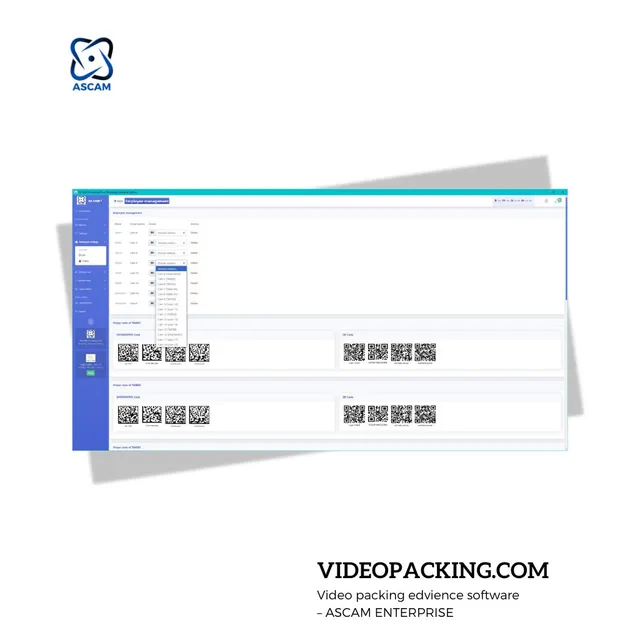
Configure Scan Triggers
Set what happens when a barcode is scanned. The key options are:
- Start recording on scan — Recording begins the moment a barcode is detected
- Auto-tag order number — The scanned barcode value is saved as the video's order reference
- Stop recording — Choose between manual stop, timeout (e.g., 60 seconds), or next scan
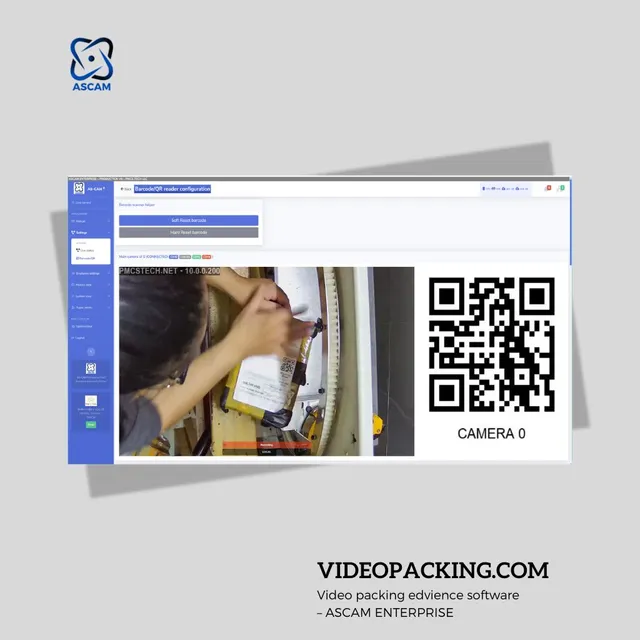
Test the Scanner
Use the built-in test mode to verify everything works. Scan a sample barcode and check that:
- The barcode value appears correctly in ASCAM
- Recording starts immediately after scan
- The video is tagged with the correct order number
- Recording stops according to your chosen trigger
Assign to Employee and Go Live
Once testing is complete, assign the scanner to a specific packing station and employee profile. This links all scanned videos to the correct packer for KPI tracking and accountability.
Make sure to set up proper access controls so only authorized personnel can modify scanner configurations.
Troubleshooting Tips
- Scanner not detected? — Try a different connection. Avoid wireless hubs for initial setup.
- Barcode reads incorrectly? — Check scanner mode (some need to be set to HID mode).
- Recording does not start? — Ensure at least one camera is active and the scan trigger is enabled.
- Double scans? — Enable scan debounce (200ms delay) in ASCAM scanner settings.